
Getting Started
Welcome to TieBase! TieBase is a modern sticky notes application with Model Context Protocol (MCP) integration capabilities.
What is TieBase?
TieBase is a modern sticky notes application with the following features:
- Digital sticky note creation
- Tag-based organization
- Japanese-compatible search functionality
- MCP integration with AI services
Installation Steps
1. Download the Application
Download the appropriate version for your Mac from the Download page:
2. DMG File Installation
- Double-click the downloaded
.dmgfile to open it - Drag & drop
TieBase.appto theApplicationsfolder - Launch TieBase from Launchpad or Applications folder
3. First Launch
Due to macOS security features, a warning may appear on first launch:
- Open System Preferences → Security & Privacy
- Click "Open Anyway" in the General tab
- Or right-click on TieBase.app and select "Open"
MCP Setup (Claude Desktop Integration)
1. Get MCP Path
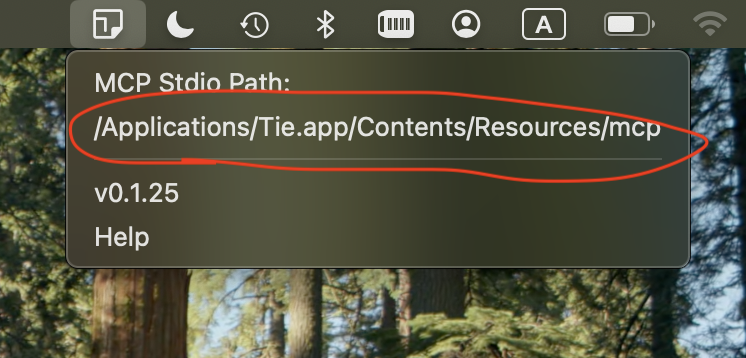
After launching the TieBase application, you can get the necessary information from the TieBase icon in the system tray:
- Right-click the TieBase icon in the system tray
- Select "/Applications/TieBase.app/Contents/Resources/mcp"
- The MCP server path will be copied to your clipboard
2. Claude Desktop Configuration
Open Claude Desktop's configuration file:
~/Library/Application Support/Claude/claude_desktop_config.jsonAdd the following configuration (replace the path with the actual one):
json{ "mcpServers": { "tie": { "command": "/Applications/TieBase.app/Contents/Resources/mcp" } } }Restart Claude Desktop
3. Verify MCP Functionality
Try the following in Claude Desktop:
- "Search for tasks via TieBase"
- "What tags are available in TieBase?"
- "Show items tagged with 'ideas' in TieBase"
Basic Usage
Creating Sticky Notes
- Click on the application screen
- Enter text
Adding Tags
- Select a sticky note
- Enter a tag name in "Enter tag..."
- Press Enter to add
Search Function
- Click the magnifying glass icon in the bottom right
- Filter by Keyword and Tag
- Click search results to select the corresponding sticky note
Next Steps
- MCP Setup Guide - Detailed MCP configuration instructions
- Download - Get the latest version
- Release Notes - Check for updates
Start efficient knowledge management with TieBase!